Your cart is currently empty!
Author: phoneshopbd@gmail.com
-
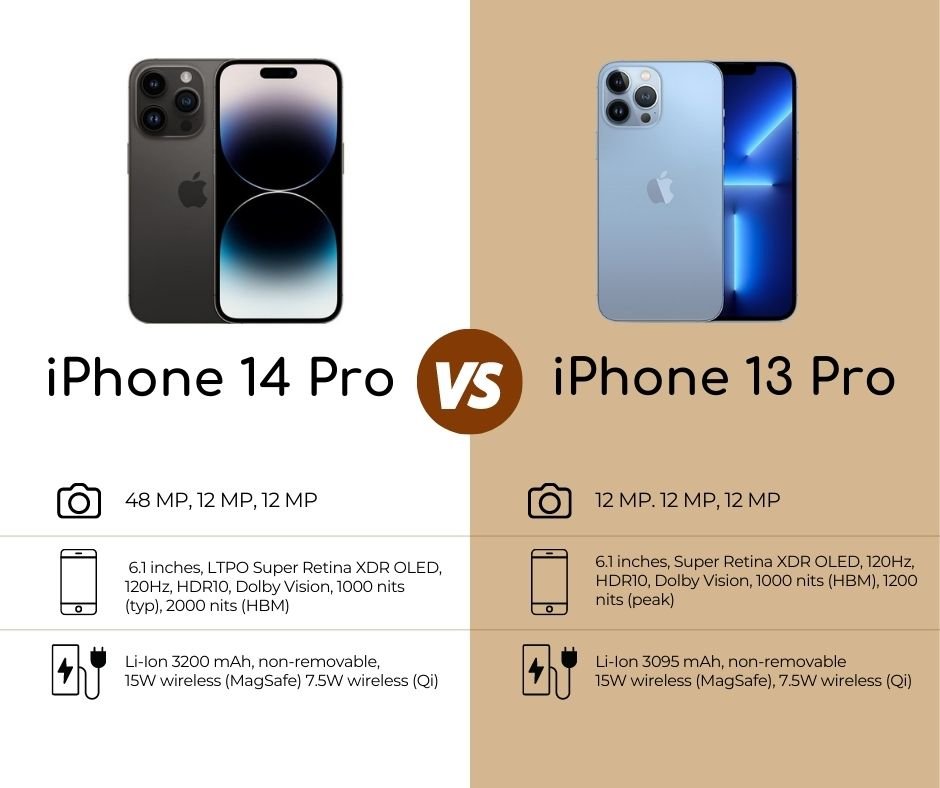
Basic Compare Apple iPhone 14 Pro with the iPhone 13 Pro.
The Apple iPhone 14 Pro is a significant upgrade over the iPhone 13 Pro; it features a faster processor, brighter screen, and a cool new Dynamic Island feature. It also has a 48MP sensor on the main camera compared to the 12MP sensors of the iPhone 13 Pro. Both models shoot in 4K at up to 60fps, and they have the same memory and storage sizes. The iPhone 14 Pro has a slightly improved battery life of 23 hours of video playback compared to the iPhone 13 Pro’s 21 hours. Internally, the iPhone 14 Pro runs on the A16 Bionic chipset with 16-core Neural Engine, while the iPhone 13 Pro runs on the A13 Bionic chipset.
-

How to Use ChatGPT: A Comprehensive Guide
How to Use ChatGPT: A Comprehensive Guide
ChatGPT, an artificial intelligence (AI) language model developed by OpenAI, has taken the world by storm since its launch in late 2022. Its powerful text generation capabilities, user-friendly interface, and numerous applications have made it a popular tool among professionals, students, and hobbyists alike. In this comprehensive guide, we will explore how to use ChatGPT effectively and delve into its various applications and features.
Introduction to ChatGPT
ChatGPT is an AI-based language model that uses advanced natural language processing (NLP) techniques to generate human-like text responses to user prompts. It has garnered significant attention for its ability to hold natural conversations with users and generate content across a wide range of subjects. The key to ChatGPT’s success lies in its accessibility, ease of use, and remarkable text generation performance.
Creating an OpenAI Account
To get started with ChatGPT, you need to create an OpenAI account. Follow these steps:
- Visit chat.openai.com and choose to register with an email address, Google, or Microsoft account.
- If you’ve never created an account before, click on “Sign up” and follow the prompts to enter your information.
- OpenAI requires a valid phone number for verification purposes during the account creation process.
Once your account is set up, you can log in to access ChatGPT.
Navigating the ChatGPT Interface
Before diving into the numerous applications of ChatGPT, it’s essential to familiarize yourself with its interface. Here’s a breakdown of the key elements you’ll encounter:
- New Chat Button: Click this button on the left-hand side of your screen to start a new conversation at any time.
- Chat History: The left sidebar keeps all your previous conversations accessible, in case you need to revisit them. You can also turn off chat history if desired.
- Upgrade to Plus: ChatGPT Plus is a paid subscription that grants members access to the GPT-4 model, a faster and larger language model from OpenAI. You can choose to upgrade to Plus or continue using the free version.
- Account: Click on your email address or name on the bottom left of your screen to access your account information, settings, and help resources.
- Your Prompts: Your questions or prompts appear in the main chat window.
- ChatGPT’s Responses: The AI’s responses are displayed alongside the ChatGPT logo.
- Copy, Thumbs Up, Thumbs Down: Use these options to copy the response text, provide feedback on the response’s accuracy, or help fine-tune the AI.
- Regenerate Response: Click this button if you need to prompt ChatGPT to try again with a latest answer.
- Text Area: Type your prompts and questions in this input field and press enter to send them.
ChatGPT Applications
ChatGPT’s versatility makes it suitable for various tasks, from content creation to programming and education. The following sections highlight some of these applications.
Content Creation
ChatGPT’s language generation capabilities make it an ideal tool for creating written content, such as:
- Essays
- Blog posts
- Social media updates
- Poems and songs
- Marketing copy
Code Writing and Debugging
Developers can use ChatGPT to write, analyze, and debug code, making it a valuable tool for software development. Examples of prompts include:
- Write a Python function to calculate the factorial of a number.
- Analyze this code and tell me how to fix it: [Paste the code]
Language Translation
ChatGPT can provide translations between various languages, making it useful for multilingual communication or content localization.
Education and Learning
Educators and students can utilize ChatGPT for learning purposes, including:
- Research assistance
- Summarizing complex concepts
- Generating quizzes or practice questions
- Providing explanations for specific topics
Entertainment
Users can engage with ChatGPT for entertainment or creative inspiration, such as:
- Generating funny answers to questions
- Writing fictional stories or scripts
- Creating jokes, riddles, or trivia questions
Best Practices for Using ChatGPT
To get the most out of ChatGPT, consider these best practices:
- Be specific: Include as much detail as possible in your prompts to guide the AI toward generating accurate and relevant responses.
- Refine your prompts: If the AI’s initial response is not satisfactory, try rephrasing your prompt or adding more information.
- Provide context: When asking for information, consider providing some background to help the AI understand the context better.
- Test multiple prompts: Experiment with different prompts to gauge the AI’s capabilities and limitations.
ChatGPT Limitations and Safety
While ChatGPT is a powerful tool, it is not perfect. Some limitations include:
- Inaccurate or nonsensical responses
- Sensitivity to the phrasing of prompts
- Lack of real-time information access
- Potential to generate inappropriate content
To ensure user safety and improve the AI, OpenAI encourages users to provide feedback on problematic outputs and participate in their Bug Bounty program.
Comparing ChatGPT to Other AI Tools
ChatGPT faces competition from other AI language models, such as Google Bard and Microsoft’s AI-powered Bing. While ChatGPT excels in accessibility, knowledge, and fluidity of conversations, it lacks real-time information access provided by search engines like Bing. Users should carefully consider the specific requirements of their tasks before choosing the most suitable AI tool.
ChatGPT Plus and GPT-4
ChatGPT Plus is a subscription service that offers additional benefits, including:
- Access to the GPT-4 model
- Faster response times
- Priority access to new features
For users who require enhanced performance and features, upgrading to ChatGPT Plus may be a worthwhile investment.
AI Ethics and Future Implications
The rapid development and adoption of AI language models like ChatGPT raise ethical concerns and questions about the future impact on various industries. Issues such as job displacement, AI-generated misinformation, and privacy concerns must be addressed to ensure responsible and beneficial AI deployment.
Frequently Asked Questions
- Can I use ChatGPT on mobile? Yes, you can access ChatGPT through your mobile browser, although there is no dedicated mobile app.
- Is ChatGPT free? Yes, ChatGPT is currently free, but there is a paid subscription option called ChatGPT Plus for additional benefits.
- Can ChatGPT refuse to answer my prompts? Yes, AI systems like ChatGPT are programmed to reject inappropriate requests or those that involve illegal activities.
- Does ChatGPT give everyone the same answer? ChatGPT’s responses may vary slightly, but it generally provides similar answers to the same prompts for different users.
- Will my conversations with ChatGPT be used for training? Your interactions with ChatGPT can be used as training data for refining the AI, so avoid entering personal or private information.
By following this comprehensive guide, you can effectively use ChatGPT to enhance your productivity, creativity, and learning across various domains. From content creation to programming and education, ChatGPT’s versatility makes it a valuable tool for users from all walks of life.
-

Waht is mobile processor?
A mobile processor, also known as a microprocessor, is a type of central processing unit (CPU) designed for small electronic devices such as laptops, tablets, smartphones, and other portable devices. These processors are energy-efficient, consume less power than other types of CPUs, and operate at a lower voltage. However, due to their smaller size, they have relatively limited power and processing speed compared to larger electronic devices. The Mobile Intel Pentium 4, released in 2003, marked the beginning of the manufacture of Intel chips specifically made for application on notebooks. AMD also releases mobile processors through its Turion series to compete with Intel. In 2008, Intel introduced the Intel Atom, specifically designed for smaller electronic devices such as netbooks, nettops, and Mobile Internet Devices.
-

Solving the Green Line Issue on Your Android Phone: Quick and Effective Solutions
As a smartphone user, one of the most frustrating issues you can encounter is a green line on your phone’s screen. This problem can occur on any Android phone, and it can be caused by a variety of factors. In this article, I will provide you with quick and effective solutions to resolve the green line issue on your phone.
Understanding the Green Line Issue on Android Phones
The green line problem is a common issue that users face on their Android phones. This problem usually appears as a thin green line that runs vertically down the screen. It can occur on any part of the screen and can be visible all the time or only when the phone is in use.
The green line issue is usually caused by a hardware problem with your phone’s display. It can be caused by a faulty screen, damaged display connectors, or a damaged graphics processing unit (GPU). In some cases, the problem may also be caused by a software issue.
Causes of the Green Line Issue
There are several reasons why the green line issue can occur on your Android phone. One of the most common causes is a damaged screen. A cracked or damaged screen can cause the green line problem to occur. Another common cause is a damaged display connector. This can occur if your phone has been dropped or if it has been exposed to moisture.
A damaged graphics processing unit (GPU) can also cause the green line problem to occur. This is a hardware issue that can occur if your phone has been dropped or if it has been exposed to extreme temperatures. Finally, a software issue can also cause the green line issue. This can occur if your phone’s software is outdated or if it has been infected with malware.
Common Symptoms of the Green Line Issue
The green line problem on your Android phone can manifest in different ways. Some of the most common symptoms include:
- A thin green line running vertically down the screen
- The green line appearing on any part of the screen
- The green line being visible all the time or only when the phone is in use
- The green line flickering or flashing on the screen
If you notice any of these symptoms on your phone, it’s important to take action quickly to resolve the issue.
Quick Fixes for the Green Line Issue
If you’re experiencing the green line issue on your Android phone, there are a few quick fixes that you can try. These include:
- Restarting your phone: Sometimes, a simple restart can resolve the green line issue. To do this, hold down the power button on your phone until the screen turns off, then turn it back on again.
- Cleaning the screen: Dirt or dust on the screen can sometimes cause the green line problem. To clean your phone’s screen, use a soft, lint-free cloth and wipe gently.
- Adjusting the brightness: In some cases, adjusting the brightness of your phone’s screen can resolve the green line issue. To do this, go to Settings > Display > Brightness and adjust the slider to your liking.
Effective Solutions for the Green Line Issue
If the quick fixes don’t resolve the green line issue on your Android phone, there are more effective solutions that you can try. These include:
- Updating your phone’s software: A software update can sometimes resolve the green line problem. To check for updates, go to Settings > System > Software update and tap on “Download and install.”
- Factory resetting your phone: If the green line issue persists after trying all other options, a factory reset may be necessary. This will erase all data on your phone, so it’s important to back up your data beforehand. To do this, go to Settings > System > Reset options > Erase all data (factory reset).
- Replacing the screen: If the green line problem is caused by a damaged screen, you may need to replace it. This should be done by a professional technician to ensure that the new screen is installed correctly.
How to Prevent the Green Line Issue from Happening Again
To prevent the green line issue from happening again on your Android phone, there are a few things you can do:
- Use a phone case: A phone case can protect your phone from damage if it’s dropped or bumped.
- Avoid exposing your phone to extreme temperatures: Extreme temperatures can damage your phone’s hardware, including the display.
- Keep your phone up to date: Keeping your phone’s software up to date can help prevent software-related issues from occurring.
- Avoid downloading apps from unknown sources: Malware can infect your phone and cause software-related issues, including the green line problem.
Additional Tips for Maintaining Your Android Phone’s Screen
To keep your Android phone’s screen in good condition, there are a few additional tips you can follow:
- Use a screen protector: A screen protector can protect your phone’s screen from scratches and damage.
- Clean your screen regularly: Use a soft, lint-free cloth to clean your phone’s screen regularly.
- Avoid using your phone with wet hands: Moisture can damage your phone’s hardware, including the display.
- Avoid exposing your phone to direct sunlight: Direct sunlight can damage your phone’s hardware, including the display.
Seeking Professional Help for the Green Line Issue
If you’ve tried all the solutions mentioned above and the green line issue persists, it’s time to seek professional help. Contact your phone’s manufacturer or a professional technician to diagnose and fix the problem. Or try to contact with us with your phone number, location, phone model, and specific problems.
Conclusion
The green line issue on your Android phone can be frustrating, but it’s not a problem that you have to live with. By following the quick fixes and effective solutions outlined in this article, you can resolve the green line issue and prevent it from happening again. Remember to take care of your phone’s screen by following the additional tips mentioned above. If all else fails, seek professional help to diagnose and fix the problem.